The latest versions of the Axcitement software include default background images that are automatically enabled for each game.
This feature is available in:
- Windows version 5.3.0
- Linux version 7.3.0
You can choose which games use each default background or remove a background from a game by following the steps below.
1. Check for Software Updates
Before managing your default backgrounds, make sure you have the latest version of the Axcitement software:
- Windows version 5.3.0
- Linux version 7.3.0
Press Ctrl + M in the Axcitement software to open the Admin options. Then select Check for Updates.
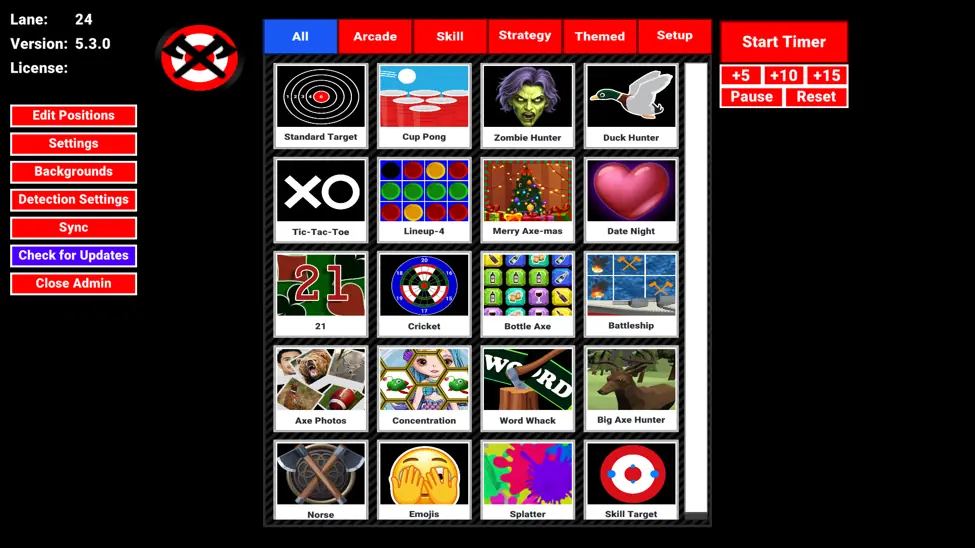
2. Open the Background Controls
Select Backgrounds from the Admin options on the left.
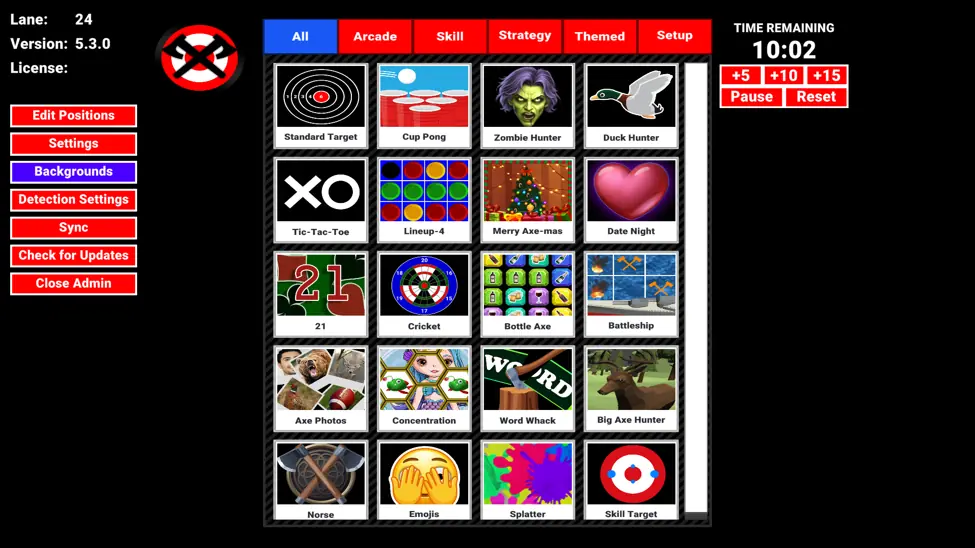
Select Backgrounds again to view the default background images and manage which games use each one.
3. Select a Default Background
Use the left and right arrows to scroll through the available default backgrounds.
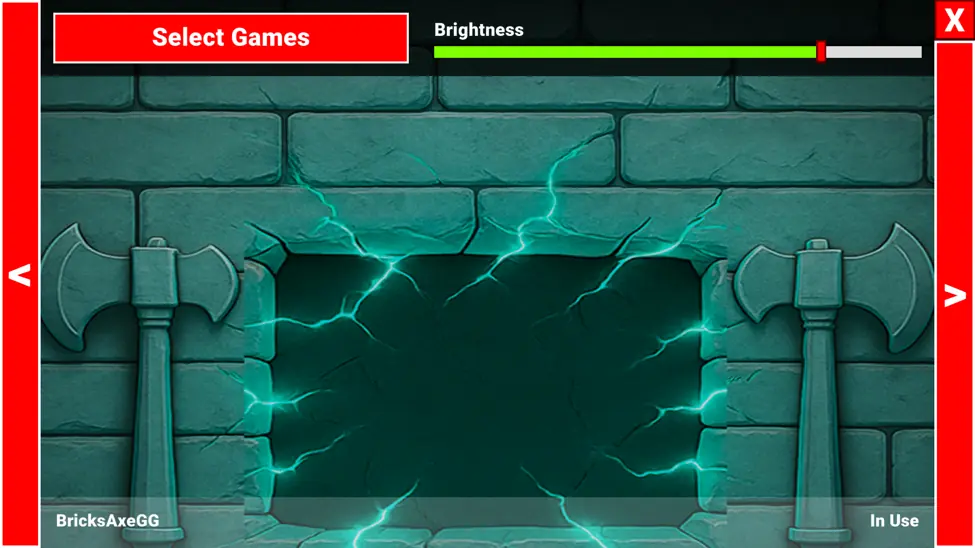
When you find the background you want to manage, select Select Games.
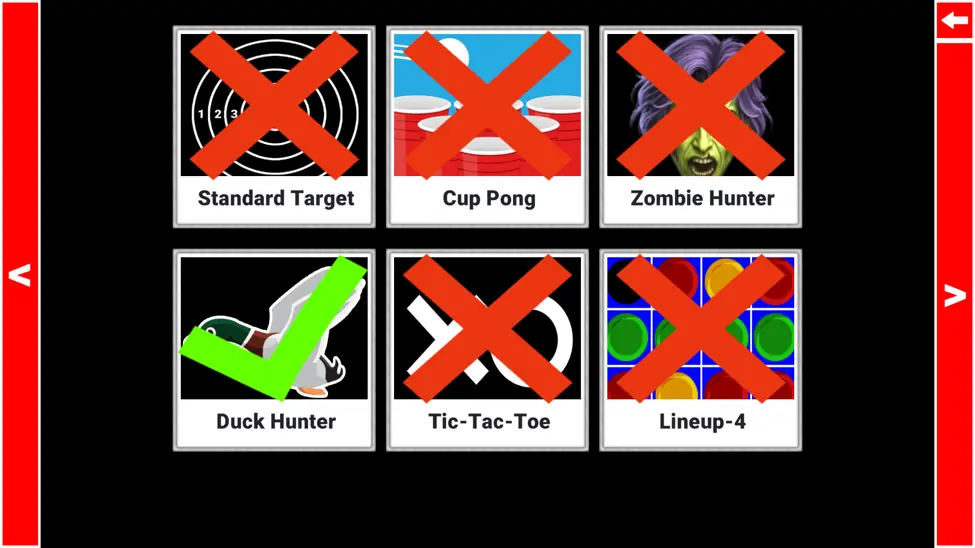
4. View the Games Using the Background
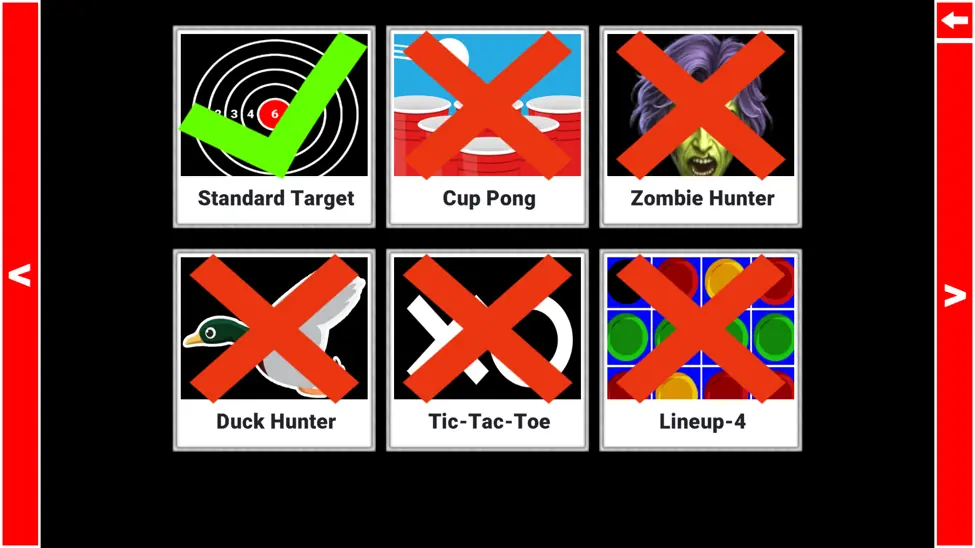
The next screen shows which games are currently using the selected background.
- A green checkmark means the background is enabled for that game.
- A red X means the background is not enabled for that game.
Use the left and right arrows to scroll through all available games.
5. Add or Remove the Background
Select a game to change whether it uses the background:
- To remove the background from a game, select a game with a green checkmark. The checkmark will change to a red X.
- To enable the background for a game, select a game with a red X. The X will change to a green checkmark.
Repeat these steps for any other default backgrounds or games you want to update.